
Authentication Error with VNC
Issue
- User is reciving a GUI pop-up messages that says the following, and asks for the root password at login:
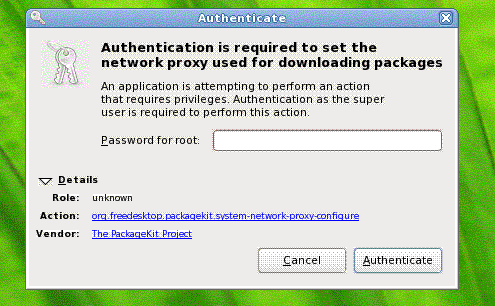
- When logging into a VNC session as user the following message is received:
Authentication is required to set the network proxy used for downloading packages An application is attempting to perofrm an action Action: org.freedesktop.packagekit.system-network-proxy-configure Vendor: The PackageKit Project Environment
- Red Hat Enterprise Linux 6
gnome-packagekit, several versions
Resolution
Solution 1: Ensure that the system is properly registered with RHN/Satellite
(Re)register the system with one of the following commands. This will resolve the fact that the system may have pointed RHN to reference a proxy server [accidentally]:
# rhn_register or
# rhnreg_ks --username <customerusername> --password <customerpassword> --force Solution 2: Disabling the ‘Packagekit Update Applet’
Alternatively it is possible to disable the Packagekit Update Applet, thus also preventing the popup. Here the update options in the GUI will stay available to the user. To disable the applet:
- In the Gnome GUI go to System > Preferences > Startup Applications
- Uncheck ‘Packagekit Update Applet’ from the list
Solution 3: Grant the user permissions
Alternatively to above solutions, the affected user can also be granted permissions via PackageKit. Please note, this just grants permissions to run the applet, to perform the updates the root password will be requested. For this the following steps can be used, <user> should be exchanged with the name of the user that should get the permissions:
# cd /etc/polkit-1/localauthority/50-local.d # cat > 50-network-proxy-username-access.pkla << EOF [Allow <user> remote access to network proxy] Identity=unix-user:<user> Action=org.freedesktop.packagekit.system-network-proxy-configure ResultAny=no ResultInactive=auth_admin ResultActive=yes EOF # # cat > 50-sources-refresh-username-access.pkla << EOF [Allow <user> remote access to sources-refresh] Identity=unix-user:<user> Action=org.freedesktop.packagekit.system-sources-refresh ResultAny=no ResultInactive=auth_admin ResultActive=yes EOF # Root Cause
The Packagekit Update Applet (from gnome-packagekit) checks for updates of packages. The gnome-packagekit applet is the front end GUI for RHN (and yum update daemons that check for updates).
For a desktop/workstion, root is typically inaccessible but the will be notified of system updates. The PackageKit Update Applet provides the front end tools for such notifications (and related errors like the one above).
The error message above means that during RHN registration, the system may have pointed RHN to reference a proxy server accidentally, which can be resolved in two ways.
Diagnostic Steps
- To disable the rhnsd service the following can be used:
# /etc/init.d/rhnsd stop # chkconfig rhnsd off